Release v10 (Latest)
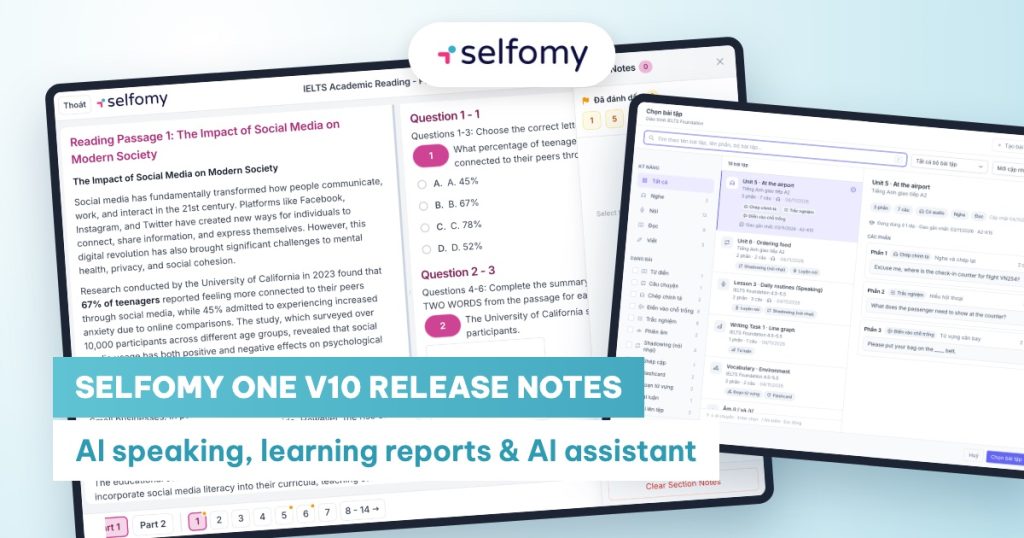
All changes in Selfomy One version 10 for teachers and center administrators, from the official v10.0.0 release to today. The newest release is listed first.
See all versions in Selfomy One Release Notes.
Releases
- v10.12.0 (16 Nov 2026)
- v10.11.0 (13 Nov 2026)
- v10.10.0 (10 Nov 2026)
- v10.9.0 (5 Nov 2026)
- v10.8.1 (4 Nov 2026)
- v10.8.0 (4 Nov 2026)
- v10.6.1 (29 Oct 2026)
- v10.6.0 (29 Oct 2026)
- v10.5.1 (27 Oct 2026)
- v10.5.0 (27 Oct 2026)
- v10.4.3 (25 Oct 2026)
- v10.4.1 (22 Oct 2026)
- v10.4.0 (21 Oct 2026)
- v10.3.0 (17 Oct 2026)
- v10.2.1 (7 Oct 2026)
- v10.2.0 (7 Oct 2026)
- v10.1.0 (28 Sep 2026)
- v10.0.0 (23 Sep 2026)
Version v10.12.0 (16 Nov 2026)
Courses and Website
- New course cards and course detail page.
- Course cards are consistent across the website: image, name, teacher, discount, rating, number of students who completed, price.
- Hover over a card (on desktop) for a quick view: learning format, number of lessons, entry level, target outcome, enroll button and View course details. On phones, the quick view button opens the same content.
- The course detail page includes entry level → target, ratings, a video frame and price that stay fixed while scrolling, a This course includes section, course content, instructors, student achievements and testimonials, and related courses.
- Edit course page content right in course information. The Advanced settings section opens full screen for editing course page content. New courses default to Per course as the Pricing method. The video course option has been renamed Sell online course.
- Create self-study online classes faster. Choosing Online self-study class when creating a class opens the Create online self-study class panel directly, creating an online course for sale and its accompanying class in one go.
- Bug fixes:
- Pages with course lists no longer break when a course has no URL yet.
- The online course purchase button no longer leads to an error page when the center hasn’t set up a registration form.
Assignments
- Hide an entire assignment collection from the website. Turning off visibility for an Assignment collection hides every assignment in it from the website, even if individual assignments are set to visible.
- Filter by assignment collection. The student Assignments page has an Assignment collection filter with a search box. The Test collection filter on the tests page also has a search box.
Test Library (students)
- Further filter improvements: the search box, Test collection and sorting sit on one row above the skill tabs, displaying neatly on all screen sizes.
Grading
- Quickly edit the overall score right on the grading page. On IELTS, TOEIC and SAT grading pages, teachers type a new overall score (number or %) into the score box and click outside to save, without changing the return status.
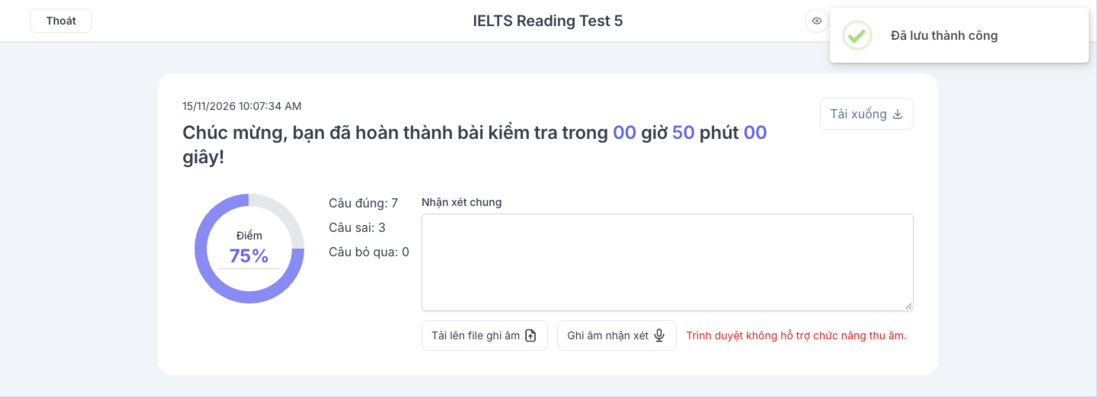
- More flexible grading of IELTS short answers. The same time, date or number written differently is marked correct, e.g.
8:15=8.15,30 April=April 30th,1,800=1800.
TOEIC
- Reading question numbering 101–200 and Part 5/6/7 across all test, review, results and grading pages, just like the real exam.
Test Bank
- Selfomy-provided test collections are updated directly in the center’s copy. Questions students have already answered are kept, and their attempts are unaffected.
- Bug fix: AI-imported tests no longer contain images that don’t belong to the test.
Version v10.11.0 (13 Nov 2026)
Grading
- “AI grading” status. For AI-graded submissions (IELTS Writing, Speaking, Mixed, TOEIC Speaking/Writing and AI-graded assignments), the submission list shows an AI grading or AI grading failed label.
- When opening a submission that is being graded, the page shows AI is grading this submission with an estimated time, and automatically opens the grading page when AI finishes. Teachers can click Grade now to grade it themselves right away.
- AI results are stored separately for reference and comparison with the teacher’s score.
- If AI grading fails, teachers can choose Regrade with AI or grade it themselves.
- Consistent word counts. The essay word count on the grading and results pages now matches the counter students see while writing, and includes numbers (e.g. “2020”, “25%”). Previously numbers were ignored, so data-heavy Task 1 essays could be undercounted.
Test-Taking (students)
- Auto-submit abandoned attempts. Timed tests that students leave unfinished are automatically submitted after time runs out: real exams and closed virtual exam rooms are submitted within about 15–45 minutes; other tests after 16 hours. Teachers no longer have to wait on attempts stuck “In progress” forever.
- IELTS Reading/Writing allow copy and paste within the test (as in computer-delivered IELTS): students can copy words from the reading passage into answer boxes, or cut and paste within their own essay. Pasting external content is still blocked and logged.
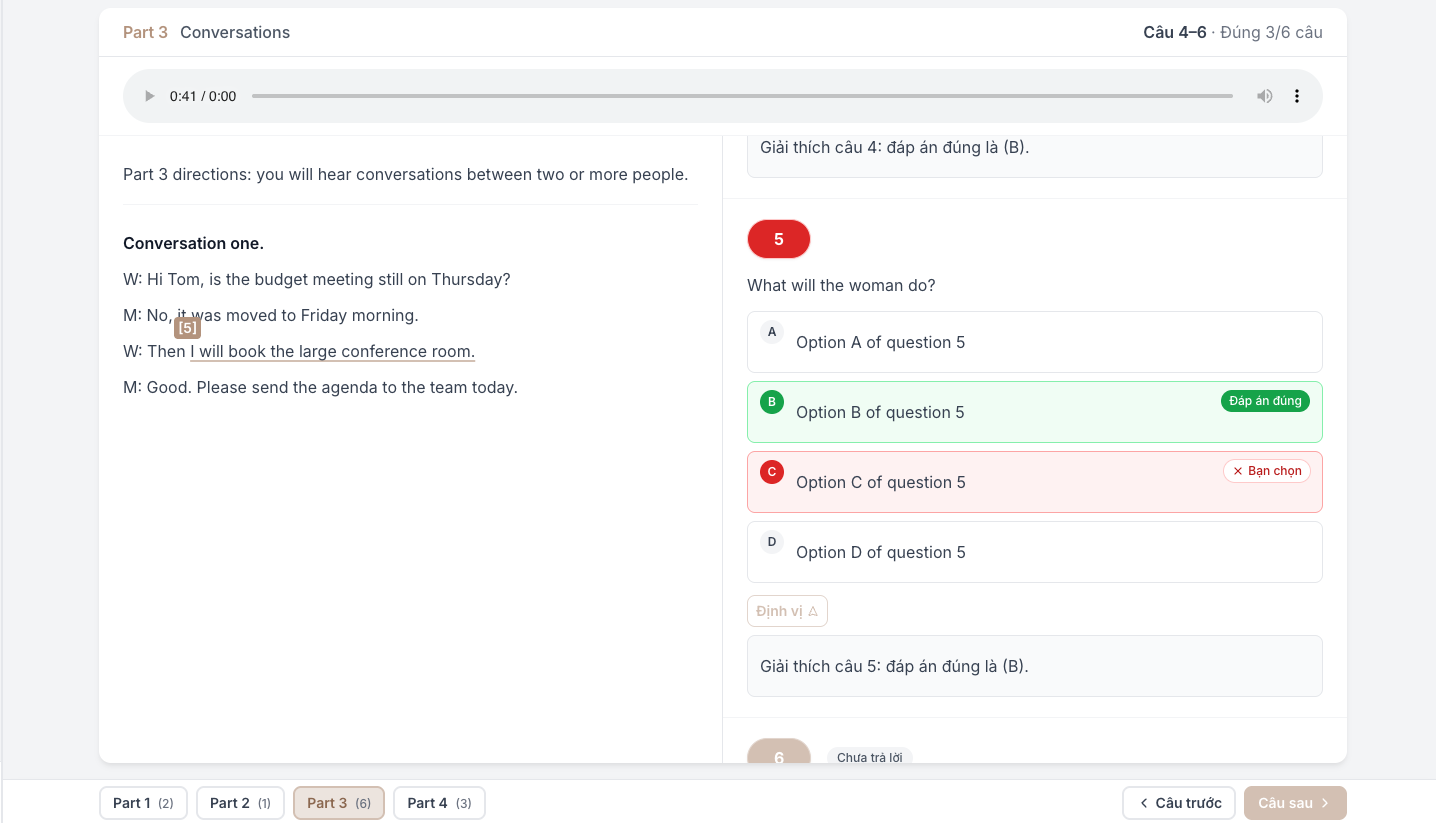
- Further improvements to the TOEIC review page: each page displays like the real exam (one question, or one conversation/passage with its questions), with Previous / Next buttons. The transcript or passage is on the left, questions on the right.
- Virtual exam room bug fix: an exam session is only closed once the student has submitted all tests in the exam room.
Test Library (students)
- Leaner test and assignment filters. Students pick a skill via tabs, then filter by Section, Question type, Topic. Only options that have tests are shown, with counts. Writing test cards show the chart image and Task prompt right away.
- Topics for IELTS Speaking. Speaking questions are automatically tagged with 16 topics (e.g. Daily Life, Hobbies and Free Time, Food and Drink, Work and Careers), helping students and teachers filter tests by topic.
Assignments
- Unified audio and video uploads. Every upload spot in assignments accepts MP3, WAV, M4A, OGG audio and MP4, MOV, WEBM video, up to 200 MB. Each upload box clearly states the formats and limit.
- Bug fix: when creating Dictation with AI with sentence merging, each sentence keeps its own correct translation.
- Further improvement: errors when creating questions with AI in the assignment editor (e.g. a YouTube video could not be fetched) show a clear reason right in place.
Test Bank
- AI test import (table selection, map/diagram types): the question list is no longer duplicated above the table, and the table title is preserved.
Version v10.10.0 (10 Nov 2026)
Assignments
- Use YouTube videos for Dictation and Shadowing. A section’s source has two options: Upload file (audio or video) and YouTube. The Play this segment button plays the exact segment for each sentence right in the video. “Create with AI” also accepts YouTube videos for both Dictation and Shadowing.
- Merge short sentences when creating Dictation with AI. The Merge adjacent sentences with simple vocabulary into 1 sentence option (on by default) combines very short, simple adjacent sentences (“Yes.”, “OK.”, “Thank you.”…) so students don’t have to do too many easy items.
- Failed AI creations show a clear reason (e.g. private video, video too long, no speech), with a Retry button.
Classes
- The “Show answers” choice is kept when assigning. Previously, the Show answers choice selected in Assign was saved as the default from general settings. The teacher’s choice is now kept as is.
Daily Practice
- Faster, more reliable saving. Authorized staff can now save practice programs (previously only administrators could). Saving a 100-day program is much faster. Each day shows the correct send date and time, and the Assign button is always fully visible.
Virtual Exam Room
- Bug fix: when choosing a test for an empty exam session, the Select test panel opens on Full tests instead of automatically selecting a test section.
Test Bank
- AI test import stays closer to the original: passages, questions, options, explanations, images and word limits are preserved; answers are not invented when the original test has none.
Version v10.9.0 (5 Nov 2026)
Assignment Picker (new)
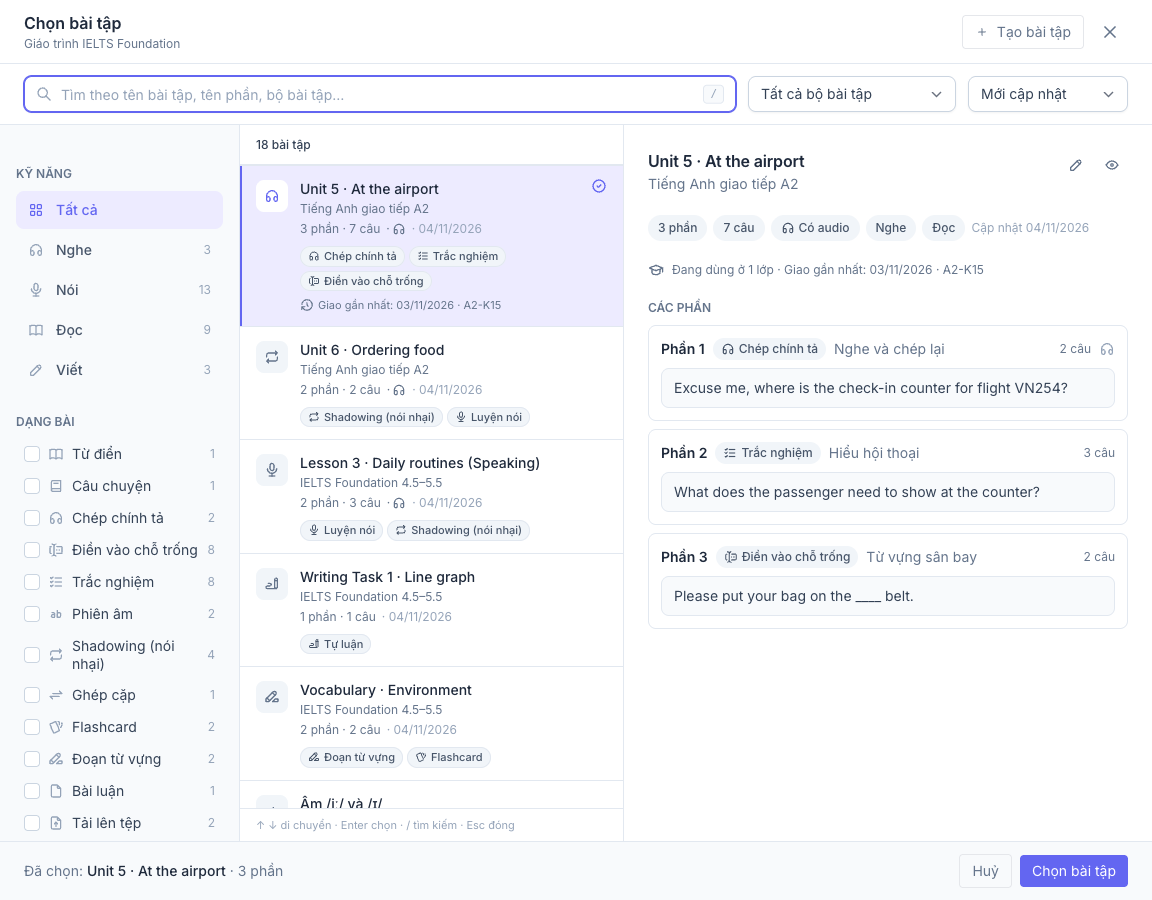
- New “Select assignment” panel, similar to the Select test panel. Used when adding assignments to a curriculum, when using Assign, and when creating a curriculum with AI.
- Filter by Skill (Listening, Speaking, Reading, Writing), Assignment type, Assignment collection, Created by and Recently used. Search by assignment name, section name or assignment collection.
- Preview each section with its first question, the number of classes using it and when it was last assigned.
- The Import from another assignment button in the assignment editor also uses this panel: select an assignment, tick the sections you need, then Copy.
Virtual Exam Room
- Use only some sections of a test in a virtual exam room. When choosing a test for an exam session, select Only some sections (e.g. Reading passages 1 and 3). The time limit is calculated based on the selected sections.
Grading
- Risk level labels right next to student names on the class grading page, the Virtual Exam Room page and the Recent Mock Tests tab. Hover to see the main reason (e.g. “Exited full screen 2 times”).
Sharing Links with Students
- Copy links quickly from many places.
- The test and assignment tables have a Link column with a Copy link button.
- After using Assign, the Assignment results table includes a separate link for each class.
- The test editor and assignment editor have a Copy link button next to Preview.
- Click a name to open details. In admin tables, click a row’s name/title to open its detail page (or edit panel).
Test Bank
- AI-imported tests are no longer missing names. Tests extracted from PDFs where AI cannot read the title get default names “Quiz 1”, “Quiz 2″…, which teachers can still edit before importing.
Test-Taking (students)
- Bug fixes:
- In IELTS Speaking (practice), clicking a Part button opens the first question of that part.
- The student’s THPT test list shows only THPT tests; THPT test collections show all the tests inside.
- Special characters (quotes, &…) in assignment content and explanations display correctly, no longer showing codes like
'.
Forms
- New response email notification bug fixes: each answer appears once, neatly, with line breaks preserved. Forms with a class selection question now send emails normally too.
API and AI Teaching Assistant
- Bug fix: adding and updating curriculum items, as well as Daily Practice days, via the API or AI Teaching Assistant no longer causes errors.
Version v10.8.1 (4 Nov 2026)
Browser-Based Exam Proctoring
- Stricter risk levels. Every copy/paste, full-screen exit or page leave raises the risk level to at least Low. Long or repeated full-screen exits raise it to Medium or High. Each signal has an “At least …” label so teachers know why a submission has that risk level.
Version v10.8.0 (4 Nov 2026)
TOEIC Speaking and Writing (new)
- Author TOEIC Speaking and TOEIC Writing tests. Click Use standard structure to get a ready-made ETS-standard test layout (Speaking 11 questions, Writing 8 questions), or add sections yourself.
- Each question has all the fields for its type: image, 2 required words, email to respond to, read-aloud passage, essay topic, sample answer.
- Preparation/response times and minimum word counts follow ETS standards and can be adjusted per question. Questions with missing information are flagged.
- Students take tests like the real exam.
- Speaking: microphone check, listening to directions, preparation countdown, beep, recording with countdown, then automatic move to the next question.
- Writing: timed per section.
- In practice mode, students can skip wait times, replay and re-record.
- AI grading and results page. Submissions are AI-graded against ETS criteria. Students see their scaled score (0–200), proficiency level (and CEFR for Speaking), per-question scores and feedback, recordings with transcripts, and sample answers. Teachers review and regrade on the Grading page like other tests.
IELTS Test-Taking (students)
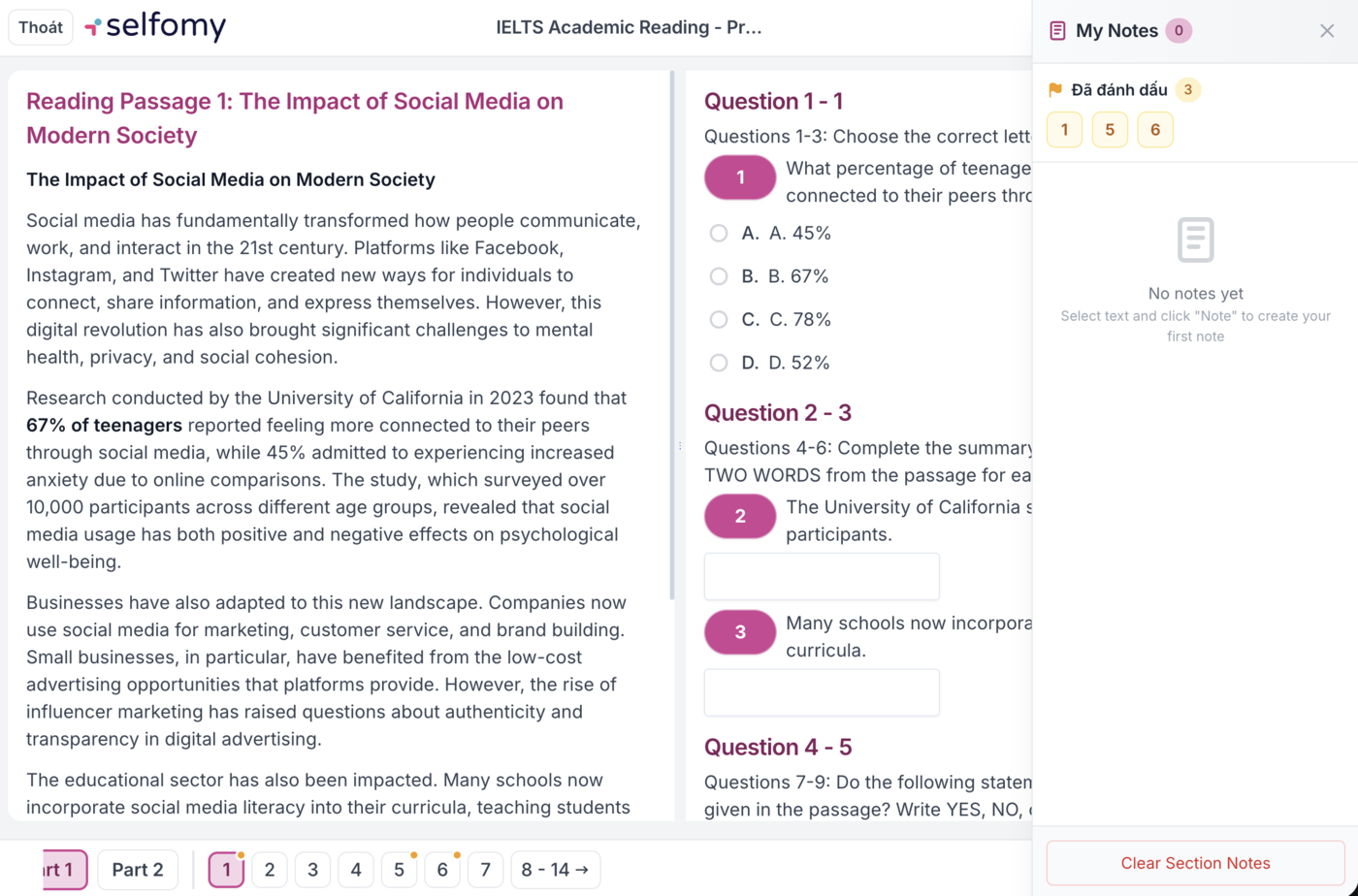
- Mark questions for review. Each IELTS Reading, Listening and Mixed question has a Mark for review flag button, just like in TOEIC and SAT tests.
- Marked questions show an orange dot on the question number bar at the bottom of the page, and are listed in the Marked section of the notepad so students can return to them quickly.
- Flags persist if the student reloads the page midway.
- Audio in IELTS Mixed tests plays per section. Audio only plays when the student enters that section, pauses when they leave, and resumes at the right spot when they return (even after reloading the page or switching devices). In real exams, audio that has finished will not replay and the section shows Audio has finished playing. A new attempt always starts audio from the beginning.
- Speaking section in IELTS Mixed tests. IELTS Mixed tests can now include Speaking questions alongside Reading, Listening and Writing: students record their answers, which are AI-graded and shown in the results.
- Preparation time and speaking time for IELTS Speaking. Each IELTS Speaking question can have a preparation time (countdown before recording) and a maximum speaking time.
- Bug fixes:
- Matching Headings no longer loses selections when dragging and dropping.
- The Submit button no longer gets stuck in a loading state.
- Images in a question group no longer overlap the next question group.
Browser-Based Exam Proctoring
- Behavior logging and cheating risk levels. When taking a real exam in the browser (IELTS, TOEIC, SAT, THPT), the system records actions such as leaving the page (with duration), pasting external content, opening the test in another tab, exiting full screen, right-clicking, and long inactivity. The system does not store the content students copy.
- On the grading page, the Smart Proctor panel shows the Risk level (No risk, Low, Medium, High), a timeline and details of each event. This is a hint for teachers to review, not a conclusion of cheating.
- Copying, searching and right-clicking are blocked during real exams. These actions are blocked again on all exam pages and logged with the (Blocked) label.
Test Bank
- Essay questions in IELTS Mixed tests are AI-graded with overall feedback.
Service Plans and AI Quotas
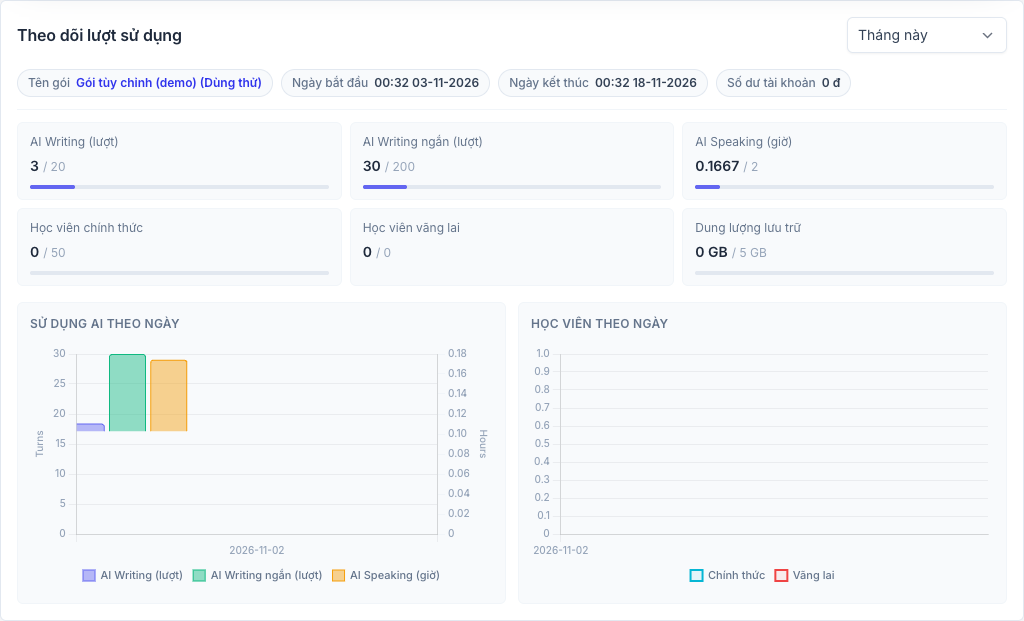
- More accurate usage tracking. Quota cards (AI Writing, AI short Writing, AI Speaking, storage) show used / total over the whole plan period, with start and end dates. Storage is displayed correctly (previously it always showed 0).
- Fairer quota calculation. AI Speaking duration is rounded once for the whole test instead of per recorded answer (e.g. 12 questions of 20 seconds each now count as 4 minutes instead of 12 minutes). Each graded short writing question counts as exactly 1 credit.
Other
- Bug fix: staff invitation emails were sometimes not sent.
Version v10.6.1 (29 Oct 2026)
Assignments
- Further improvements to “Create with AI”: the assignment editor and the list page share the same creation panel. In the editor, results are added directly into the assignment being edited after the review step.
- Each section’s instructions support rich text (line breaks, bold…), and students see the correct instructions for the section they are working on. Previously, every section showed the first section’s instructions.
- Assignment editor bug fixes:
- The cursor no longer jumps or drops characters while typing (including Vietnamese typing) during auto-save.
- Adding a new section no longer causes errors or duplicate sections.
- “Guided AI speaking” bug fixes: the screen no longer goes blank when something goes wrong, and shows a clear message instead. The microphone only listens during the student’s turn and no longer picks up the bot’s voice.
Grading
- Show the latest submission while a student is retaking. If a student has submitted and then started a retake, the grading page and gradebook still show the score and grading button for the latest submission, instead of “In progress”.
Classes
- Bug fix: every newly created class gets its own curriculum, including classes of online courses and classes created from sample data.
Test Bank
- Bug fix: saving AI-imported IELTS Mixed tests (combined from multiple tests) no longer causes errors.
Version v10.6.0 (29 Oct 2026)
Assignments
- “Create with AI” on the assignment list page has been rebuilt with the same interface as the editor.
- The Create with AI menu includes Create assignment with AI and Import progress.
- The creation panel has From PDF file, create-from-audio, and Recent creations tabs (with status and View results, Open assignment, Retry buttons).
- Results appear on the AI Import Results page so teachers can review them and choose an assignment collection before creating the assignment.
- AI can create almost every assignment type.
- From PDF: multiple choice, fill in the blank, matching, essay, speaking practice, file upload, dictionary, flashcards, vocabulary passages, phonetics… Multiple choice imported from PDF is now graded correctly against the answer key.
- From audio/video: can create Shadowing sections as well as Dictation.
- Use teacher-defined blanks. Turn on Use the blanks I created and paste the sentences (use
___with the answer, or put the word in{{ }}). AI uses only the blanks the teacher chose, and prefers the teacher’s spelling when the audio is unclear. - Table of contents in the assignment editor. The Contents column on the left lists sections and questions. Click to jump to and open that question right away. Question numbers run continuously across sections, just like the test page.
- Shadowing bug fix: long sentences, translations and pronunciation results now wrap, with no more horizontal scrolling.
Sign-in
- Enter the student site without a password. The Go to student site button in the admin panel opens the center’s learning website using the staff member’s own student account. The student sign-in page also has a Are you center staff? Sign in with your admin account link. This applies to all centers, even those that have not enabled Google sign-in.
Timekeeping
- Add and edit staff timekeeping manually. Users with timekeeping permission can Add timekeeping record for days someone forgot to scan, or Edit timekeeping record (check-in/out time, status, notes). Each edit requires a Reason and is saved to the Edit history (who edited, when, and why).
AI Teaching Assistant
- Ask about learning results: the AI Teaching Assistant can answer questions like “gradebook for class X”, “results of student Y”, “who hasn’t submitted assignment Z”, “average score by skill”.
Version v10.5.1 (27 Oct 2026)
Assignments
- New assignment editor. The page for editing an assignment has been redesigned to be leaner and faster.
- The top bar has Preview and Save, plus two tabs: Edit and Settings. Right at the top, you can select or quickly create an Assignment collection, and upload a listening track shared by all questions.
- Each section is a card with its type, title, Instructions for students and its own settings. Sections can be duplicated, collapsed, and dragged and dropped to reorder.
- Questions display much like the student screen. Click a question to open its editor. Questions can also be duplicated, moved, dragged and dropped, or deleted.
- Select audio segments on a waveform for Dictation and Shadowing: drag both ends to select a segment, zoom in/out, click Play this segment to preview. Timing is precise to 0.1 seconds.
- Import from another assignment: copy one or more sections from another assignment into the one you are editing. Copies are independent; editing them does not affect the original.
- Create with AI right in the editor: generate Dictation questions from a section’s audio or a new audio file, or import content from a PDF file.
- Smarter AI Dictation from audio. AI picks the words to type and translates each sentence.
- Students need to type: 1–2 words/phrases per sentence (default), 3–4 words, or the whole sentence.
- Translate each sentence into Vietnamese (on by default).
- Additional instructions for AI (optional), with ready-made suggestions such as choosing vocabulary by CEFR level, prioritizing phrasal verbs, skipping numbers and proper names.
- “Script/scenario speaking” merged into Shadowing. Shadowing is now one seamless flow: students listen to each sentence, repeat it (the microphone records automatically, no click needed), then move on to the next sentence.
- Turn on Play full track for an experience like the old script type: the video/audio plays continuously, pausing at each of the student’s lines to prompt and wait for the student to speak. Other characters’ lines appear as subtitles.
Test Bank
- Sort and categorize test collections by source. Each test collection now has a Display order (lower numbers appear first, e.g. to put CAM 18 before CAM 17) and a Source (e.g. “Actual Tests”, “Practice Test Plus”). The Manage sources button lets you add, rename and delete sources. Students can filter tests by source.
Version v10.5.0 (27 Oct 2026)
Technical update, no interface or feature changes.
Version v10.4.3 (25 Oct 2026)
Test Bank
- Further improvements to automatic question type tagging: IELTS “Choose TWO/THREE letters” questions are correctly recognized as multiple-answer multiple choice.
AI Teaching Assistant
- The AI Teaching Assistant can also read closed classes (schedules, attendance, enrollment), e.g. to summarize last quarter’s figures.
Version v10.4.1 (22 Oct 2026)
Test-Taking (students)
- Review TOEIC tests by Part. The TOEIC review page shows all questions of a Part at once, with the student’s choice (Your answer), Correct answer, Not answered questions and explanations always visible.
- A question group’s passage appears only once and sits beside the questions on wide screens.
- The Listening section has audio and transcript in the left column; on phones, the transcript is collapsed below the audio.
Virtual Exam Room
- Bug fix: when changing the skill of an exam session (e.g. switching to Reading), the test picker updates to the new skill. Selected tests that no longer match the skill are deselected, preventing errors on save.
Version v10.4.0 (21 Oct 2026)
Grading
- Easier-to-read, exportable grading tables. On the page for grading an item in a class and on the Virtual Exam Room page:
- The header row stays at the top when scrolling down; the student name column stays visible when scrolling horizontally on small screens.
- The Export menu has Download Excel (the exact columns and filters in view, with a summary row: number of students, submitted, graded, average score) and Copy image (captures the whole table to paste into messages or reports).
Test-Taking (students)
- Audio bug fixes for IELTS tests with both Listening and Reading: only one audio track plays at a time, with no more overlapping; the “Unable to load audio for this section” message no longer appears for sections without audio.
Version v10.3.0 (17 Oct 2026)
Test Picker (new)
- New “Select test” panel, shared across many places. When adding or editing items in a curriculum, when using Assign, when placing tests into a Virtual Exam Room (including adaptive SAT), when splitting Listening audio, and when creating a curriculum from PDF with AI, teachers pick tests through a slide-out panel on the right.
- Filters: Program (IELTS, TOEIC, SAT, THPT, based on the programs the center has enabled), skill or section, Full tests / Single tests, Part, and question type with counts.
- Section names follow each skill: Listening Part, Reading Passage, Writing Task, TOEIC Part 1–7, SAT Module, THPT Part I/II/III.
- Preview the test structure before selecting. When assigning only part of a test, the selected box clearly shows the assigned part (e.g. “Passage 2 · Questions 14–27” or Entire test), with Open in test editor and View as student links.
- For a Virtual Exam Room, each session only allows tests matching that session’s skill.
- The list loads quickly even with very large test banks.
AI Teaching Assistant
- All staff can use the AI Teaching Assistant. The assistant works within each person’s own permissions and data scope; for example, teachers only see the classes they teach. Students and parents have no access.
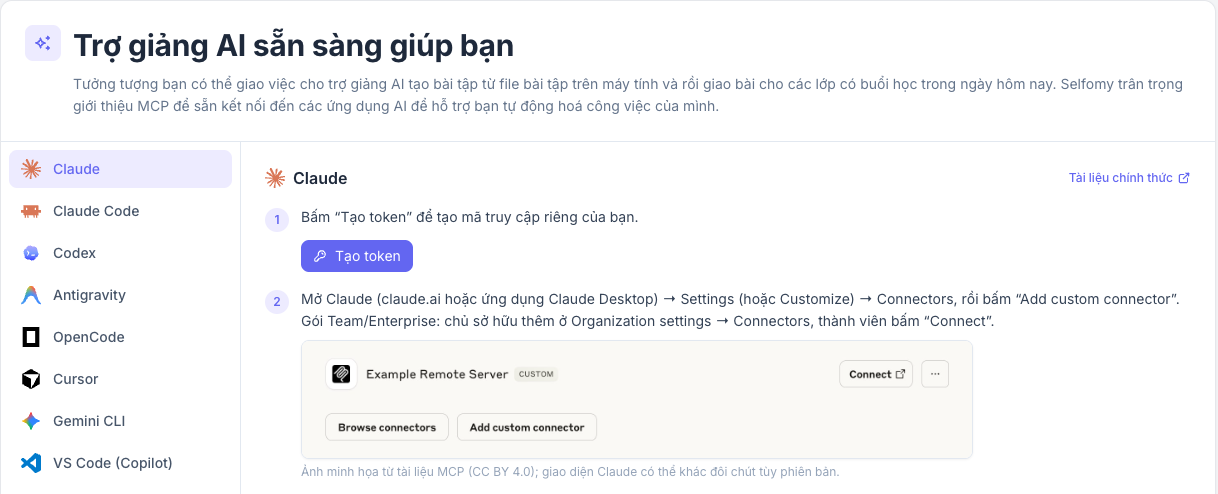
- Connect your favorite AI apps to your center’s data. The AI Teaching Assistant is ready to help guide on the home page walks you step by step through connecting Claude, Claude Code, Codex, Cursor, Gemini CLI, VS Code (Copilot)… Click Create token to get a personal access token, or choose Chat directly to use the built-in chat.
- Import tests from PDF right in the chat: users with test-creation permission just attach a PDF file and the AI Teaching Assistant creates the test.
- Schedule Q&A: ask the assistant “Which classes are on today?”, “Who teaches class X?”, “Who is absent today?”, or have it take attendance for a class (with a confirmation step before saving).
Integrations
- New app-store-style Integrations page. Under Center Settings → Integrations, centers pick apps to install, just like installing apps on a phone.
- Search (works even when typing without Vietnamese diacritics), filter by Sign-in, Payments, Communication, Documents groups; Installed, Suggested and All apps sections.
- Each app has its own page with Install / Manage buttons, setup steps, a View guide button and Test connection to check right away whether the entered details are correct.
- Applies to all 8 integrations: Google sign-in, Facebook, Lark Suite, SePay, Google Cloud, Selfomy SMS, Zalo ZNS and OmiCall. Secrets are encrypted when saved.
Assignments
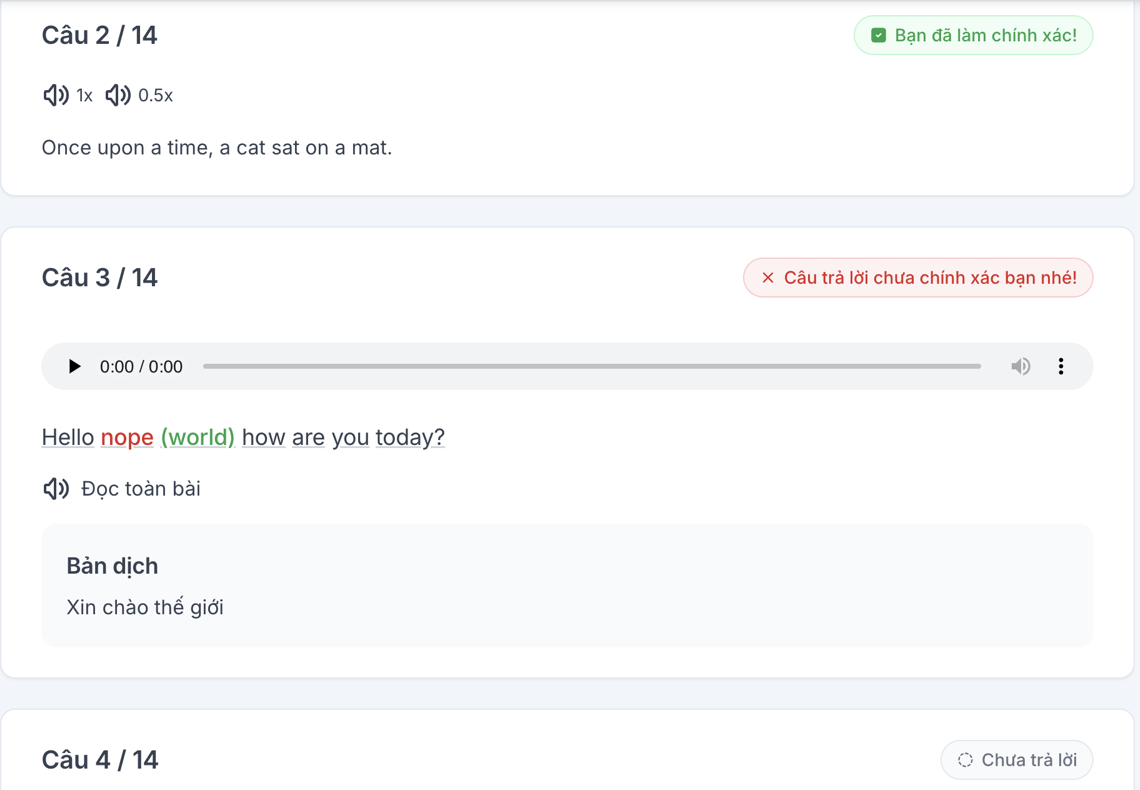
- More accurate grading for fill-in-the-blank and dictation.
- Correct answers are no longer marked wrong due to differences in letter case, special spaces, curly quotes or extra punctuation.
- Each blank and each matching pair is scored separately. Blank answers show Not answered and count as incorrect, so skipping questions no longer inflates the percentage score.
- The teacher’s grading page lists every question, including those the student left blank.
- Note when authoring: to define multiple correct answers, use
//(e.g.HASN'T GIVEN // HAS NOT GIVEN). A single/is treated as part of the answer. If older assignments use/, update them and regrade.
- Assignment editor bug fix: recently edited question content and answers (especially multiple choice) were sometimes not saved when clicking Save, or a different option was edited by mistake after deleting an option.
Test Bank
- Questions are automatically tagged with question type and topic more accurately, including AI-imported tests and tests synced from test collections. IELTS Writing recognizes the correct chart type (line, bar, table, process…); IELTS Reading/Listening clearly distinguishes completion, multiple choice and matching types; SAT uses College Board’s skill domains correctly. As a result, filtering tests by question type is more accurate.
- AI test import:
- IELTS Reading: Matching Headings and matching types are recognized correctly and no longer converted to multiple choice.
- SAT: math formulas (such as fractions) are preserved and no longer display incorrectly.
- Shorter section names: a section’s display name is no longer an instruction sentence (e.g. “You should spend about 20 minutes…”), but the first sentence of the prompt.
- Consistent question numbering: the grading page, exported files, results page and assignments use the same question numbers as the test page, even when the test uses custom numbering by question group.
- Test editor bug fix: an answer just ticked as correct while saving is no longer lost; new questions have the first option preselected as correct by default.
- Copying and syncing large test collections is faster and more reliable.
Students
- Student ID as the primary key for import/export. The Student ID column comes first in the import template and the student list export file (leading zeros preserved). On import, the system matches by student ID first, so you can export the list, edit it and import it back.
- Student import also updates login accounts. The Username / Password columns now apply to existing students too: an account is created if missing, or updated if it exists. Blank cells keep the existing value.
- Bug fix: teachers once again see the view details button for the students they teach.
Grading
- Leaner filters and the term “Test”. When no class is selected, the page shows guidance to select a class to start grading, instead of an error.
Classes
- Class session times always use 24-hour format (e.g. 14:30), regardless of the computer’s clock settings.
Learning Reports
- Bug fix: content just entered in the report table is no longer lost when clicking Ready or Publish without clicking Save first.
Students (student pages)
- Student home page bug fixes: the start button in To-do opens the correct item; items belonging to locked lessons no longer appear in the to-do list.
- THPT English test-taking bug fixes for tests converted from IELTS: selected answers are no longer cleared, students can move on to later sections, and attempts are auto-saved again.
New Centers
- Sample data for new centers. Newly created centers come with teachers, courses, classes, students, attendance, tuition, tests, assignments and submissions ready to try out. All sample data has the “(Demo Data)” suffix for easy identification.
Version v10.2.1 (7 Oct 2026)
Test-Taking (students)
- Proctored test bug fix: reloading the page during a test no longer blocks the student and forces them to reopen the proctoring app.
Version v10.2.0 (7 Oct 2026)
Learning Reports (new)
- Learning reports for students and parents. Centers create periodic report cards (Daily, Weekly, Monthly) for each course, based on an IELTS template.
- Report contents: attendance, test scores, weak skills, accuracy by question type, band prediction, the student’s Entry results and Goals, plus the teacher’s General comments.
- Setup: enable reports in Course report settings. In a class, the Linked virtual exam rooms option lets you include entry/exit test scores (held before the class starts) in the report.
- Review and publishing: reports are generated automatically each period as Draft. Teachers edit them, mark them Ready, then Publish them individually or in bulk. You can also Revoke, Print / Export PDF, Export Excel and Import Excel. Scheduled auto-publishing can also be enabled.
- Delivery to students and parents: published reports are sent by email. Parents view their child’s reports in the Parent Portal, signing in with a 6-digit code sent to their email, no password needed.
Classes
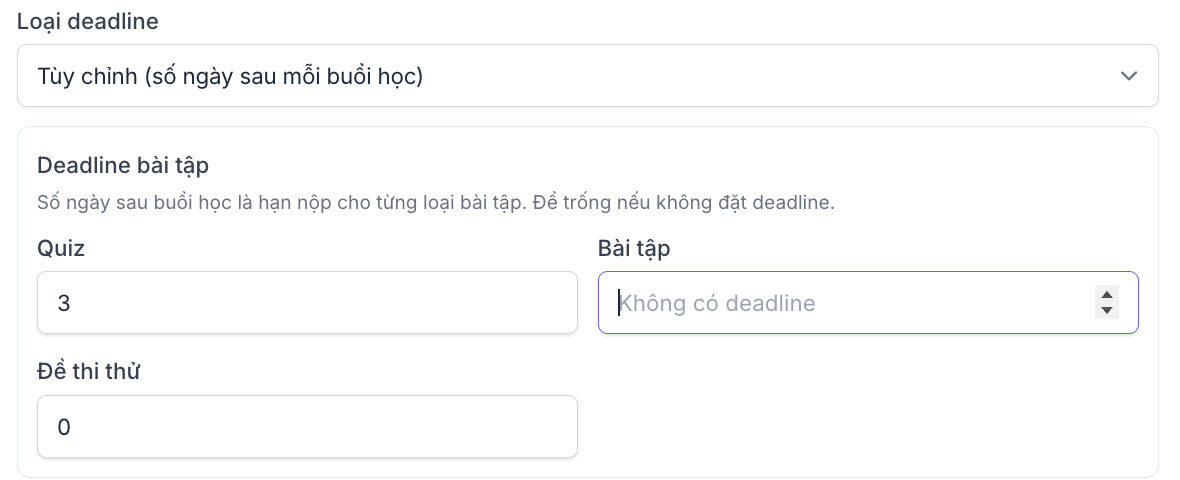
- Two deadline types for class assignments. In class information, the Deadline type field has two options:
- Default (days after class start, configured in Course), as before.
- Custom (days after each session): set separate due-day counts for Quiz, Assignments and Mock Test. Leave blank for no deadline.
- When the class schedule changes, deadlines update automatically. When changing the deadline settings of an ongoing class, the system asks you to confirm Update deadlines before applying them to all items, to avoid unintended deadline shifts.
- Staff with Curriculum permission can open a class in the student view to preview content without being added to the class. Teachers can only view classes they are in charge of.
Test-Taking (students)
- Refreshed IELTS, SAT and TOEIC review page. Adds font size controls (Normal, Large, Extra large), previous/next question buttons, and clearer answers and explanations.
- Proctored test bug fix: when taking a test through the proctoring app on a computer, the test page no longer asks to enter full screen a second time.
Payments
- Bug fix: some payments for Selfomy service plans were paid but not recorded. Orders are now recorded in full.
Version v10.1.0 (28 Sep 2026)
Grading
- Grade by class session. When you select a class on the Grading page, submissions are grouped by curriculum section and session, with the date and time of each session.
- The Jump to bar lets you jump quickly to the Current session, the Upcoming session, or any session via the Select session… box.
Classes (students)
- Two ways to view the curriculum. Students can switch between the Path and Hierarchy layouts.
- Hierarchy shows each section as a card; click it to expand the lesson list in place, with a progress bar and the number of lessons completed. The section containing the current lesson opens automatically with a Continue label.
- Centers choose the default layout in Website → Settings → LMS, under Default curriculum layout. Students can still change it themselves.
- The student curriculum page loads faster, especially for classes with many lessons.
Version v10.0.0 (23 Sep 2026)
This is the official release, consolidating all previous beta releases (see details in Release v10.0-beta). In addition, this release includes:
Assignments
- AI speaking practice assignments (new). Four new speaking question types let students talk directly with a bot via microphone:
- Live speaking: the bot asks questions in turn through Part 1, Part 2, Part 3 like a mock speaking test, then scores at the end.
- Script/scenario speaking: students watch a video (YouTube link or uploaded file) and say the required line each time the video pauses. Teachers can click Generate transcript with AI, then tick the lines students will say and pick the student’s role.
- Guided AI speaking: students converse with the bot and get direct feedback on pronunciation, grammar and fluency, with an overall score at the end.
- Free speaking: students chat freely with the bot; teachers review the session afterwards.
- When grading: teachers see the Conversation transcript, Fluency summary (speech rate, filler words, pause ratio), results for each turn, and can enter an Overall score (0-100) and Comments.
Student Interface
- Redesigned student learning area. A brighter interface with bigger buttons that are easier to use on phones.
- Learning path: lessons in a class are arranged into one continuous path, each with a clear status (completed, in progress, upcoming, locked). The page scrolls automatically to the current lesson.
- Student home page: brings together To-do (sorted by due date, with late items labeled Overdue), upcoming Exams & Quizzes and Recent results.
- Cleaner left menu: Assignments, Quizzes, Results and Scores, Learning Reports, and it can be collapsed.
Sign-in
- Easier Google sign-in setup. Centers just need to enable Google sign-in in Center Settings → Integrations and leave Client ID/Secret blank; students can still sign in with Google on the center’s website. Centers that have entered their own Google credentials keep working as before.

